Want to use WhatsApp on two phones with the same number? Yes — you can. WhatsApp’s companion mode lets you link a second phone to your primary account, so both phones send and receive messages under one number. This guide walks you through the exact 2026 setup, the limitations to know, and fixes for common problems.
For years, WhatsApp enforced a strict one-phone rule: one number, one active device. If you logged in on a second phone, the first was kicked out. That changed when WhatsApp rolled out multi-device support and, later, companion mode for smartphones. In short: if you want to use WhatsApp on two phones with the same number in 2026, companion mode is the feature to use.
- Companion Mode Explained: How Two Phones Share One Number
- How to Use WhatsApp on Two Phones Same Number: 2026 Setup Guide
- Limitations of Companion Mode You Should Know
- WhatsApp Business: A Note for Business Users
- Tips and Troubleshooting
- Frequently Asked Questions
- Conclusion
Companion Mode Explained: How Two Phones Share One Number
Companion mode is WhatsApp’s official way to use one account on up to four additional devices — including a second phone — without logging out anywhere. Each linked device connects independently to WhatsApp’s servers and keeps end-to-end encryption intact, so your chats stay private no matter which phone you pick up.
This is very different from the old workaround people used to rely on: WhatsApp Web in a mobile browser. That trick only mirrored your phone’s chats, required the primary phone to stay online, and logged out constantly. Companion mode runs the full WhatsApp app on the second phone, with its own persistent connection.
There is also an older, riskier method some people still try: verifying the same number on two phones one after the other. Don’t do this — each new verification deactivates the other phone, so you’re stuck in an endless loop of logouts. Companion mode replaces that entirely: both phones stay active at the same time, and everything stays in sync.
How to Use WhatsApp on Two Phones Same Number: 2026 Setup Guide
Follow these steps exactly to use WhatsApp on two phones with the same number. The critical rule: on the second phone, you link the device — you do not register or verify your phone number there. Verifying the number on the second phone is what used to kick the first phone off, and doing it by mistake is the most common setup error.
Step 1: On Your Primary Phone, Go to Settings > Linked Devices > Link a Device
- Open WhatsApp on your primary phone — the phone where your number is already verified and working.
- Tap the three-dot menu (Android) or the gear icon (iPhone) and open Settings.
- Tap Linked devices, then tap Link a device.
- Authenticate with your fingerprint, face ID, or phone PIN when prompted.
- Your phone’s camera opens in QR-scanning mode. Leave it open — you’ll need it in Step 3.
Step 2: Install WhatsApp on the Second Phone and Choose “Link as Companion Device”
- On your second phone, install WhatsApp fresh from the Play Store or App Store (or update it to the latest version if it’s already installed).
- Open the app. When you reach the number-entry screen, look for the three-dot menu in the top-right corner and tap Link as companion device.
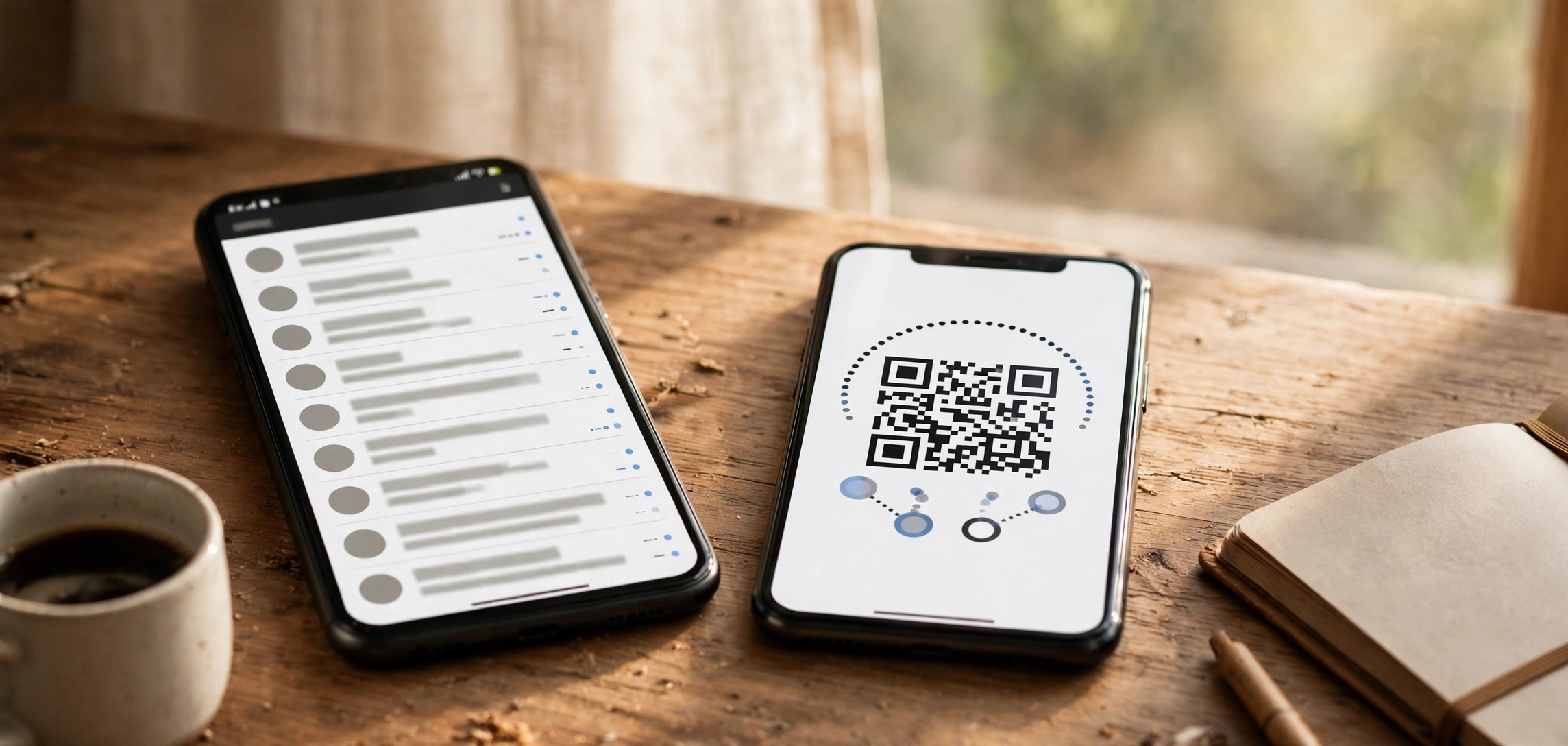
- A QR code appears on the second phone’s screen. Again: do not enter your phone number here. Entering the number triggers a fresh registration that signs you out of the primary phone.
If you don’t see the “Link as companion device” option, your app version is too old — update WhatsApp first, then retry. This option is the heart of companion mode, and without it you’re back to the old one-phone limit.
Step 3: Scan the QR Code Shown on the Second Phone With the Primary Phone
- Take the primary phone (camera still in QR-scanning mode from Step 1) and point it at the QR code displayed on the second phone.
- Hold steady until the code is recognized — this usually takes a second or two.
- Once scanned, the second phone begins linking to your account. Keep both phones near each other with a stable internet connection during this process.
Step 4: Wait for Chat History to Sync
- After linking, the second phone starts downloading your chats, contacts, and media in the background.
- How long this takes depends on your chat history size and connection speed — a few minutes for light users, longer if you have years of media-heavy chats.
- You can start using WhatsApp on the second phone while the sync continues, but some older messages and media may take a while to appear.
- Once complete, both phones work independently: send a message from one, and it shows on the other.
That’s the entire setup. If you’re transferring WhatsApp chats to a new phone rather than adding a companion, the process is different — but for running both phones at once, linking is the way.
Limitations of Companion Mode You Should Know
Companion mode is powerful, but it’s not a perfect mirror of the primary phone. Understanding these limitations up front saves a lot of confusion before you use WhatsApp on two phones with the same number.
The primary phone is still the boss. Your account lives on the primary phone — the device where your number is verified. You can unlink companion devices from the primary phone at any time, and if you unlink or log out the primary, companions lose access. WhatsApp also requires the primary phone to stay active (signed in) at least occasionally; if the primary phone goes inactive for an extended period, companion devices get logged out automatically.
Up to four linked devices total. You can link a maximum of four additional devices to one account — that includes companion phones, tablets, desktops, and WhatsApp Web sessions combined. If you hit the limit, unlink a device you no longer use before adding a new one.
Some features are limited or missing on the companion phone. Historically, companion devices couldn’t do things like broadcast lists, live location sharing, or view location in some versions. These gaps have been closing over time — for example, status updates and several other features were added to companions — but if a specific feature doesn’t work on your second phone, this is usually why. For the current list of what’s supported, check WhatsApp’s official help page on linked devices.
Notifications go to both phones. Both phones will buzz for every incoming message, which can be annoying if they’re both on your desk. Most people fix this by muting notifications on one phone, or leaving the secondary phone on silent.
Storage is duplicated. Each phone downloads and stores its own copy of chat media. If you’re low on storage on the second phone, consider disabling auto-download for media there: Settings > Storage and data.
Companion devices can be removed remotely. If you ever lose the second phone, open Linked devices on the primary and unlink it immediately. That signs the lost device out of your account. You can also check for unusual account behavior if you suspect someone else accessed your chats.
WhatsApp Business: A Note for Business Users
Companion mode works on WhatsApp Business too — and it’s arguably even more useful there. A small team can run the same business number from two or four phones: one on the counter, one with the owner, and so on. The setup to use WhatsApp on two phones with the same number is identical for Business accounts.
One catch: you cannot link a companion device from regular WhatsApp to a WhatsApp Business account and vice versa. The second phone must run the same app as the primary — Business-to-Business or regular-to-regular. Also, automated quick replies and labels sync across devices, but take a moment to confirm your catalog and greeting messages appear correctly on the companion phone after the initial sync.
If your business relies on scheduled follow-ups, note that tools used to schedule WhatsApp messages on Android typically run on one specific device — check which phone holds the scheduled tasks so nothing falls through the cracks.
Tips and Troubleshooting
QR code won’t scan: clean both screens, turn up brightness on the second phone, and hold the primary phone steady 20–30 cm away. If it still fails, close both apps and restart from Step 1.
No “Link as companion device” option: update WhatsApp on the second phone to the latest version from the official store. Never sideload modified APKs for this — unofficial clients can get your number banned.
Chats not syncing: make sure both phones have a stable internet connection and enough free storage. Large media libraries take time — leave both phones on Wi-Fi for a while. If one chat never appears, check that it wasn’t archived or deleted on the primary.
Starting from scratch: if you’re setting up a brand-new device to use WhatsApp on two phones with the same number, update the app on both phones first — an outdated app on either side is the most common cause of linking failures.
Logged out after linking: this almost always means the number was verified on the second phone instead of linked. The fix is to re-verify the number on the primary phone (which logs out the second), then redo the setup carefully, choosing “Link as companion device” and never entering the number.
Calls on the companion phone: voice and video calls generally work on companion devices, but call history and some call settings may live only on the primary. If call quality is poor, switch both phones to Wi-Fi calling-friendly networks and retest.
Keep one phone as the backup hub: enable chat backup on the primary phone so your full history is preserved even if you unlink everything. Speaking of storage, if WhatsApp is eating space on either phone, turn off auto-download of media in Settings > Storage and data to keep things under control.
Frequently Asked Questions
Can I use WhatsApp on two phones with the same number for free?
Yes. Companion mode is a built-in, free feature of WhatsApp — there’s no extra charge, subscription, or business-tier requirement. You just need the latest version of the app on both phones and a stable internet connection for the initial sync.
Do both phones need to be on the same Wi-Fi network to stay linked?
No. Once linked, each phone connects to WhatsApp independently. They can be on different networks, in different cities, even in different countries. They only need to be together briefly for the initial QR-code scan.
Will my messages and calls remain end-to-end encrypted on the second phone?
Yes. Every linked device maintains its own encrypted connection to WhatsApp’s servers, and all personal messages, calls, and media remain end-to-end encrypted across both phones. Linking a second phone doesn’t weaken your privacy — just make sure it’s a device you physically control.
Can I make calls from the companion phone?
In most current versions, yes — voice and video calls work on companion devices. If calls don’t work on your second phone, update both apps to the latest version, since call support on companions was added progressively over recent releases.
What happens to the second phone if I change my number on the primary phone?
Changing your number affects the entire account, so all linked devices — including the companion phone — are updated to the new number automatically. Your chat history stays intact on every device, and no re-linking is needed after the change completes.
Conclusion
Learning how to use WhatsApp on two phones with the same number is straightforward once you know the one rule that matters: link the second phone as a companion device, never register the number there. Go to Linked devices on the primary phone, choose “Link as companion device” on the second, scan the QR code, and let your chats sync.
Companion mode gives you up to four linked devices, independent connections, and full end-to-end encryption — with a few quirks around notifications, storage, and feature parity to keep in mind. Set it up once, and you can use WhatsApp on two phones with the same number every day without thinking about it.